
How to stop someone getting into your phone if it is stolen
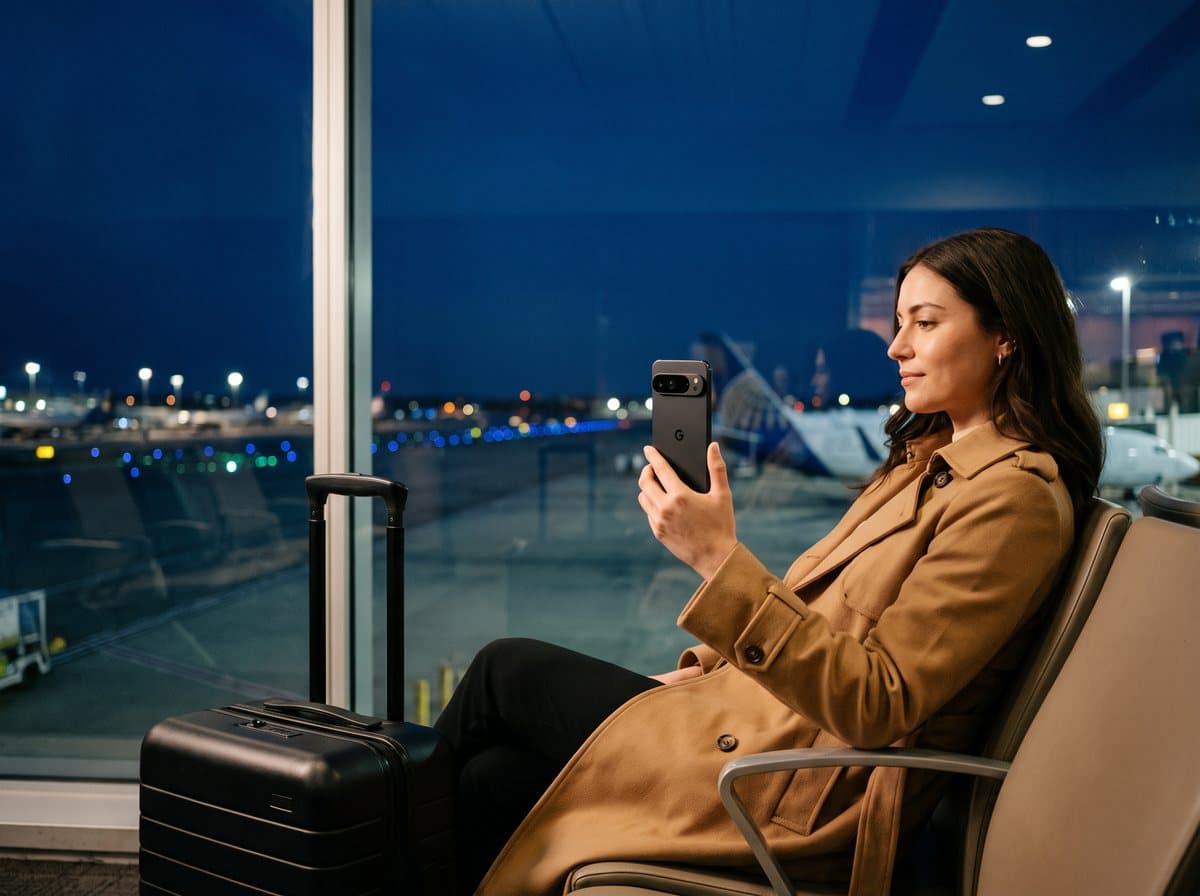
To stop a thief getting into your phone, use a long passcode they cannot easily watch you type, turn on your phone's theft protections (Stolen Device Protection on iPhone, Theft Detection Lock on Android), hide notifications on the lock screen and add a SIM PIN. Most phones are opened because the thief saw the passcode first, so protecting the code matters as much as protecting the phone.
How do thieves get into stolen phones?
Snatch theft is common. The ONS estimates that snatch thefts of phones and bags in England and Wales reached around 93,000 in the year to March 2025, the highest level in 20 years. The phone is often not the main prize.
The pattern is well documented. A thief watches you type your passcode in a bar, at a station or over your shoulder on the bus, then takes the phone. With the code, they can open banking apps, read your email, change your Apple or Google account password and lock you out. Which? reported a director who lost £73,000 through his banking app after his phone was stolen, with only £15,000 refunded.
Settings to turn on today on an iPhone
These are built into iOS and cost nothing. Each takes a minute in Settings.
- Stolen Device Protection (Face ID & Passcode): requires Face ID or Touch ID for sensitive actions away from familiar places, and adds a security delay before your Apple Account password can be changed.
- Erase Data (Face ID & Passcode): erases the phone after 10 failed passcode attempts.
- A custom alphanumeric passcode rather than 6 digits.
- Lock-screen notification previews set to show only when unlocked.
- SIM PIN (Mobile Service), so the SIM cannot be used in another phone to receive your codes.
- Find My iPhone switched on, including Send Last Location.
Settings to turn on today on Android
Names vary slightly by manufacturer. On a Google Pixel they sit under Settings, Security & privacy, Theft protection.
- Theft Detection Lock: locks the screen if the phone is snatched from your hand and carried away.
- Offline Device Lock: locks the screen if the phone is taken offline for a while.
- Remote Lock: lets you lock the phone from any browser using just your phone number.
- A strong PIN or password, not a pattern and not your birthday.
- Lock-screen notifications set to hide sensitive content.
- SIM PIN switched on.
- Find Hub (formerly Find My Device) switched on.
Habits that matter as much as settings
Settings only go so far if your phone is full of easy wins. Do not keep passwords, PINs or card numbers in a notes app or in your photos. Use a password manager instead, with its own lock. Turn off previews of one-time passcodes on the lock screen, where possible, so a thief cannot read them without unlocking.
Choose a passcode that is not linked to you. A birthday, a car registration or 123456 is the first thing someone will try.
What normal phones still cannot do
The settings above make a real difference, and everyone should use them. There are still gaps that ordinary iPhones and Android phones do not cover, which is the reason we built the Privacy Phone.
| Protection | iPhone | Standard Android | Privacy Phone |
|---|---|---|---|
| Erase after wrong passcode guesses | After 10 attempts (optional) | Not available to most users | Yes, number you choose |
| Erase if kept switched off or offline | No | No (Offline Device Lock locks only) | Yes, after a time you set |
| Erase if not unlocked for a set period | No | No | Yes |
| Emergency (duress) PIN that erases | No | No | Yes, plus fast power-button press |
| USB port limited to charging only | Accessories blocked after an hour locked | Not by default | Yes |
| Automatic restart to fully encrypted state | After about 3 days locked | After about 3 days locked (recent versions) | Every 4 hours |
Why erase protections matter
A locked phone is still a target. Thieves keep phones switched off or out of signal so they cannot be tracked or remotely wiped, then try to get in later. A phone that erases itself after being kept offline, or after a few wrong guesses, takes that option away.
An emergency PIN covers a different risk. If a thief or an abusive partner forces you to unlock your phone, you can enter the duress PIN instead and the phone erases itself rather than opening.
Our phone is a Google Pixel running GrapheneOS with Optimise Shield, which we configure in the UK to add these protections, along with an anti-snatch lock and a discreet calculator-style login. We never see your PINs and keep no remote access. If you want to compare it with other options first, read our privacy phone comparison. If the worst has already happened, our stolen phone checklist covers what to do next, and the Privacy Phone page lists every feature and the price.
Ready when you are
Guess it, switch it off or plug it in: it gives up nothing · set up in the UK · 12-month warranty
See the Privacy PhoneFrequently asked
How do I stop someone getting into my stolen phone?+
Use a long passcode, turn on Stolen Device Protection (iPhone) or Theft Detection Lock (Android), hide lock-screen notifications and add a SIM PIN. Then lock or erase the phone remotely as soon as it is taken.
Can a thief get into a locked phone?+
Rarely without the passcode, which is why most thieves watch you type it before taking the phone. A long passcode and using Face ID or fingerprint in public are the best defences.
Can I make my iPhone erase after wrong passcodes?+
Yes. Turn on Erase Data in Settings, Face ID & Passcode, and the iPhone erases itself after 10 failed attempts.
What is a duress PIN?+
A second PIN that erases the phone instead of unlocking it. It protects you if a thief or abuser forces you to unlock your phone; GrapheneOS includes one.