
Can I install GrapheneOS myself, or should I buy a phone with it?
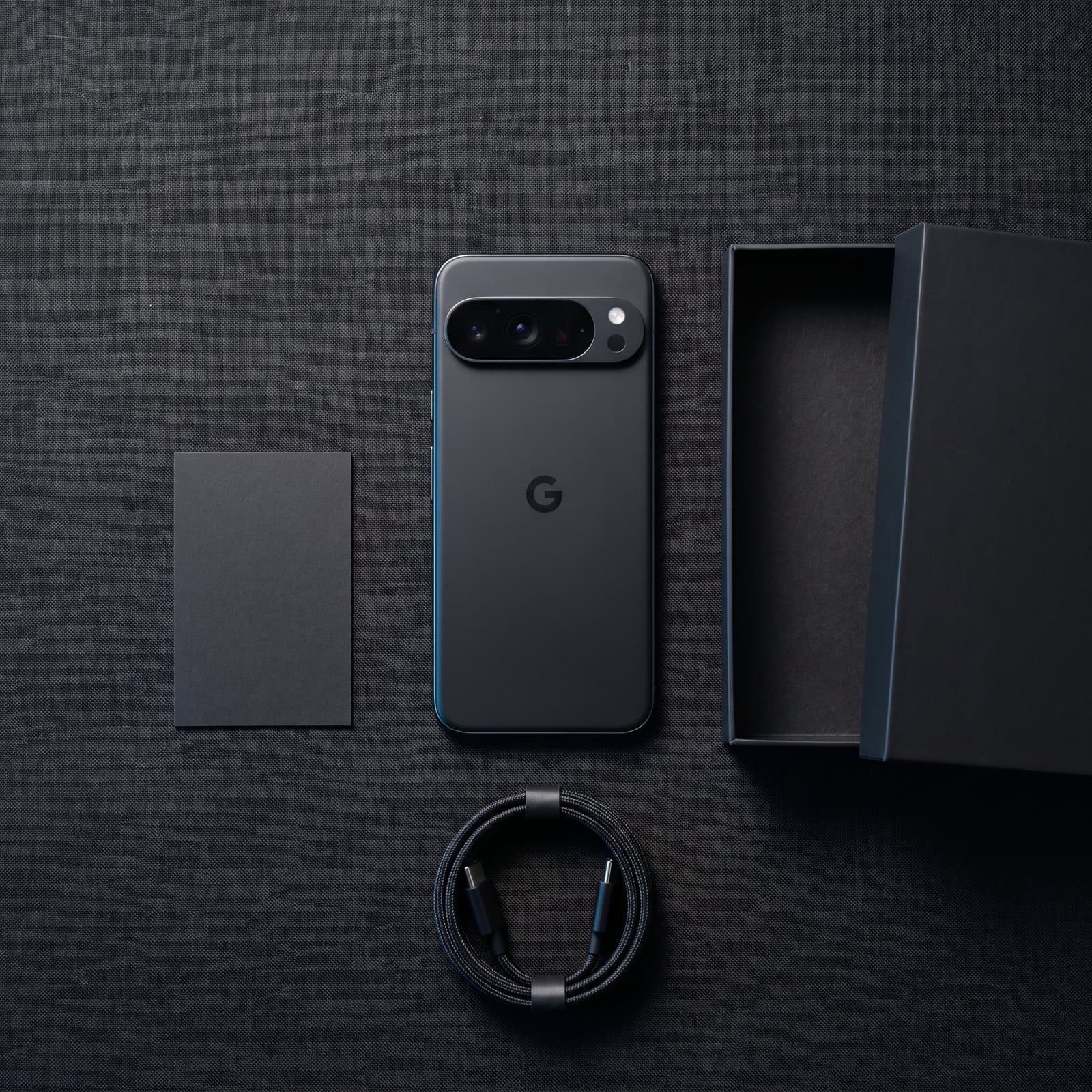
Yes. GrapheneOS is free, and anyone with a supported Google Pixel can install it using the official web installer at grapheneos.org/install, usually in 15 to 30 minutes. You need a Pixel whose bootloader can be unlocked, a computer with a Chromium-based browser, and a decent USB cable. What a DIY install does not give you is extra erase protection, a configured setup, bank-app checks or anyone to call when something goes wrong.
What is GrapheneOS?
GrapheneOS is a free, open-source operating system for Google Pixel phones, developed by an independent non-profit project. It replaces the Android that ships on the phone with a hardened version that needs no Google account, and lets you run Google Play in an ordinary sandbox if you want it.
It is not a product from any phone shop. The project does not endorse sellers, and buying a phone with it pre-installed, including from us, does not make you a customer of GrapheneOS.
What do I need to install GrapheneOS?
Check the official list of supported devices on grapheneos.org before you start. Only Pixel models are supported, and only while they still receive firmware updates.
- A supported Google Pixel with OEM unlocking available in Developer options
- A computer running Windows, macOS, Linux or ChromeOS
- A Chromium-based browser such as Chrome, Edge or Brave
- A good-quality USB-C cable, ideally the one that came with the phone
- A backup of anything on the phone, because unlocking the bootloader erases it
- Around 30 minutes without interruption
How to install GrapheneOS with the web installer
The official web installer guide is clear and kept up to date, and it covers platform quirks such as Windows drivers. Follow it rather than any video or third-party guide. In outline:
- 1Enable OEM unlockingTurn on Developer options, then switch on OEM unlocking. The phone needs to have connected to the internet once for the toggle to work.
- 2Boot into the bootloaderSwitch the phone off, then hold power and volume down until the bootloader screen appears. Connect it to the computer.
- 3Unlock the bootloaderUse the button on the installer page and confirm on the phone. This erases everything on the device.
- 4Download and flashThe installer downloads the release for your model and flashes it. Do not unplug the phone during this step.
- 5Lock the bootloaderLock it again from the installer page and confirm on the phone. This step is essential: it restores verified boot, which protects the phone against tampering.
- 6Disable OEM unlockingAfter first boot, turn OEM unlocking off again in Developer options.
Is installing GrapheneOS risky?
Not if you follow the official guide. The common problems are a poor cable, a USB hub, or closing the browser mid-install, and the guide explains how to recover from most of them. The step people skip is relocking the bootloader. A phone left unlocked loses much of the security benefit, so always finish the process.
You will lose everything on the phone when the bootloader is unlocked. Back up photos, messages and authenticator codes first.
What a DIY install does not give you
GrapheneOS on its own is a very strong base. It includes a duress PIN that erases the phone, an auto-reboot timer and controls for the USB-C port. Setting the rest up so it suits your life, and checking your apps, is your job.
| DIY GrapheneOS | Privacy Phone with Optimise Shield | |
|---|---|---|
| Cost | Free on a Pixel you own | £1,199 to £1,499 including the phone |
| GrapheneOS security hardening | Yes | Yes |
| Duress PIN | Yes, set up yourself | Yes, plus fast power-button erase |
| Erase after wrong passcodes | Not set up for you | Yes, number of attempts you choose |
| Erase if kept offline or switched off | No | Yes, after a time you set |
| Erase on a message you set | No | Yes |
| Discreet login (e.g. calculator) | No | Yes |
| Restart to encrypted state | Timer you configure | Every 4 hours, set up |
| Bank apps checked | You test them | Checked for your bank before dispatch |
| Warranty and support | Phone maker's terms only | 12-month warranty, 14-day returns, UK support |
Should I install it myself or buy one set up?
If you already own a supported Pixel and are happy following instructions, install it yourself. It costs nothing, and you will understand your phone better for having done it. Check our list of UK banking apps that work on GrapheneOS first.
If you want the extra erase protections, would rather not do the setup, or need it to work with your bank on day one, the Privacy Phone is the configured option. We set it up in the UK, never see your PINs and keep no remote access afterwards. To weigh it against iPhone and other options, read our privacy phone comparison, or go straight to the Privacy Phone page.
Ready when you are
Guess it, switch it off or plug it in: it gives up nothing · set up in the UK · 12-month warranty
See the Privacy PhoneFrequently asked
Can I install GrapheneOS myself?+
Yes. It is free, and the official web installer at grapheneos.org/install takes around 15 to 30 minutes on a supported Pixel with an unlockable bootloader.
Which phones can run GrapheneOS?+
Only Google Pixel phones that are still receiving firmware updates. Check the current list on grapheneos.org, as older models drop off when Google ends their support.
Will installing GrapheneOS erase my phone?+
Yes. Unlocking the bootloader wipes everything on the device, so back up your photos, messages and authenticator codes first.
Can I install GrapheneOS on a carrier-locked Pixel?+
Only if OEM unlocking can be enabled. Some network-sold Pixels have it permanently disabled, and those cannot run GrapheneOS.
Is GrapheneOS made by Optimise Marketplace?+
No. GrapheneOS is an independent open-source project that does not endorse any seller. We sell Pixels with it installed alongside our own Optimise Shield security setup.